 Sales: 03300 885 250
 SUPPORT
 LOGIN
LOGIN


Magento is a great e-commerce solution used by many of our customers. Most probably because it is scalable and helps to reduce back-end administration. One of its downsides is that it can be a bit of a resource hog. We don’t for example recommend that you try to run a Magento store from a shared server
One way in which you can combat this is by implementing a caching solution. The following guide will detail how to enable caching for your Magento store using Magento’s inbuilt caching engine. Though there are more refined and more intensive caching solutions available, this is perhaps the easiest to implement
Did you know…
At Clook, one of our specialisms is providing Magento optimised hosting, if you’d like to find out more, please get in touch with us.
Log into the Magento admin panel
Log into your admin panel by visiting the admin URL
This is by default www.yourdomain.com/index.php/admin unless you specified otherwise on installation

Navigate to System > Cache Management

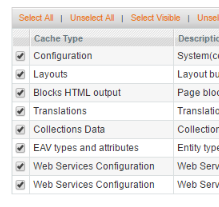
Click the “select all” button in the top left hand side of the page, in order to select all caching methods available.
Click the drop down box, next to “Actions” in the top right area of the page, change this to enable
Press the “Submit” button

Magento’s built in caching is now enabled


