 Sales: 03300 885 250
 SUPPORT
 LOGIN
LOGIN


Using Softaculous WordPress manager
In this section, we’ll talk you through a fresh WordPress install using cPanel and Softaculous.
What is Softaculous?
Softaculous is a cPanel integration that will allow you to add, install and manage over 400+ apps. Comprised of many robust scripts, Softaculous can manage the life cycle of all your applications.
Step 1:
Log in to cPanel
Once logged in to cPanel, scroll down to the bottom of the dashboard where Softaculous Apps Installer is listed.
Choose the WordPress option.

Step 2:
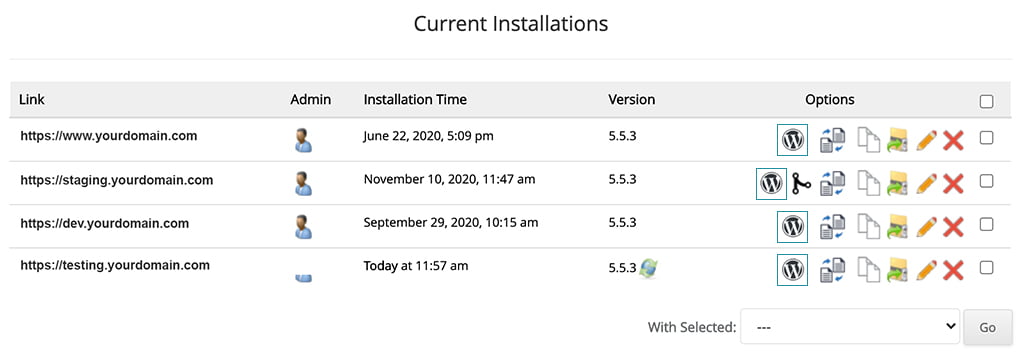
Select the WordPress installation you want to managed
Click the WordPress Icon next to the installation you want to manage.
Step 3:
WordPress account management screen
In this section, you can manage your WordPress Installation.
You’ll be able to:
Update to the newest version of WordPress.
Set to auto-update the WordPress core.
Auto Upgrade WordPress plugins.
Enable/Disable search engine visibility.
Enter WordPress debug mode


