 Sales: 03300 885 250
 SUPPORT
 LOGIN
LOGIN


Making your Magento store as fast as possible isn’t normally a quick and easy process and can involve many hours of server and code optimisations.
A couple of quick and easy optimisations, are to combine CSS and JS files and flatten your catalog. Though you should really only do this if you have more than 1000 products.
I’ll detail how you can make your Magento store faster with these two simple tweaks below
Did you know…
At Clook, one of our specialisms is providing Magento optimised hosting which is significantly faster than a standard install. If you’d like to find out more please get in touch with us.
Combine CSS and JS files
Log into the Magento admin panel
Log into your admin panel by visiting the admin URL
This is by default www.yourdomain.com/index.php/admin unless you specified otherwise when installing Magento

Navigate to System > Configuration
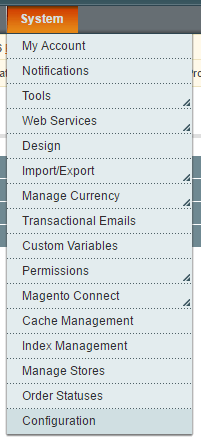
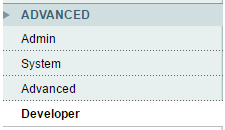
Under the Advanced tab at the bottom of the left hand menu, click on “Developer”
Click the JavaScript and CSS Settings tabs to display a drop down box and select “Yes” in both of these drop down fields.
Click the “Save Config” button in the top right area of the page.

Clear Magento’s cache.
Enable Flat Catalog
Log into the Magento admin panel
Log into your admin panel by visiting the admin URL
This is by default www.yourdomain.com/index.php/admin unless you specified otherwise when installing Magento
Navigate to System > Configuration
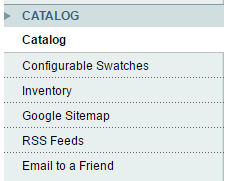
Under the Catalog tab on the left hand menu, click on the catalog link.
Click on the Frontend tab
Select “Yes” in the dropdowns for “Use Flat Catalog Category” and “Use Flat Catalog Product”
Click the “Save Config” button in the top right hand area of the page

Clear Magento’s cache.


