 Sales: 03300 885 250
 SUPPORT
 LOGIN
LOGIN


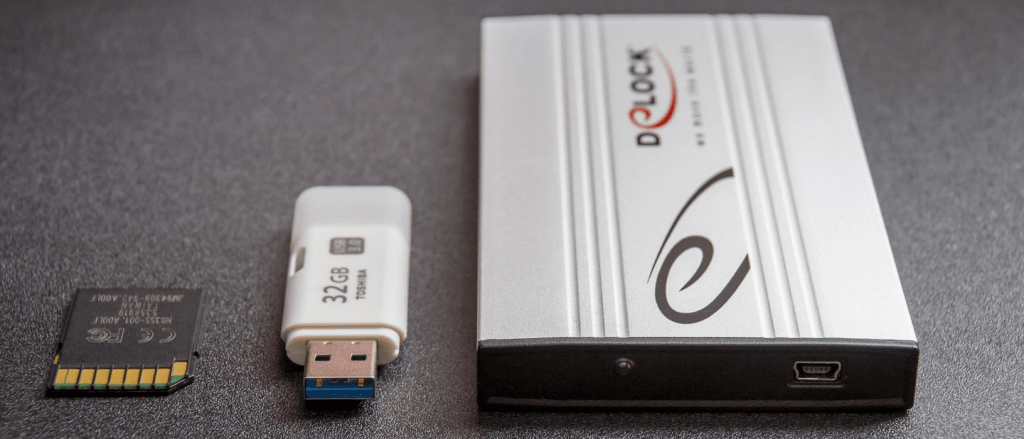
Building and maintaining a website is easier than ever nowadays, but that doesn’t mean things can’t go wrong. The site could get hacked, it could become compromised after an update, or you could delete critical files by mistake – and that’s just for starters.
Whilst we at Clook will always keep daily, weekly & monthly backups we do recommend that you as the end user should also back up your website regularly too.
A single backup could save your skin in each of the situations mentioned, and they’re simple and easy to create. All you need to do is implement an effective backup process and make sure your backups are stored securely.
Depending on your CMS, you have a number of back up options available to you :
Use a WordPress Back Up Plug In
If your website uses WordPress, an easy way to schedule regular backups is to use a plugin. There are many available but 2 popular ones are Updraft Plus & Duplicator. It is possible to set regular schedules and for backups to be saved locally or to Dropbox, Google Drive and other online storage accounts.
Softaculous Back Up
If you have used the Softaculous installer to set up your Content Management System then it may be possible to use their backup/restore facility. To set up, simply navigate to the Softaculous section within cPanel, select Softaculous and then the ‘Backups and Restore’ tab. From here you are able to back up your website according to your set schedule.
CPanel Back Up
Another option you have is to take a back up of your entire cPanel account – this will store all of your files, emails & databases. As you are saving a lot of content, backup file sizes can be high. It is easy to use – log-in to cPanel and select ‘Back Up’ from the home page.
Whichever way you chose, save your data securely and on a regular basis…


